triSearch logo

Get your AI tools working with triSearch

Connect in minutes. Try it first with cached demo searches, then go live through your triSearch account.

Choose your setup path

EXISTING TRISEARCH CLIENT
Connect to the MCP endpoint
Already have a triSearch account?

Use the endpoint below to connect your agent and start placing orders right away.
MCP Endpoint (Standard)

https://mcp.trisearch.ai/servers/trisearch-all/mcp

MCP Endpoint (Search and Invoke — for limited-context agents)

https://mcp.trisearch.ai/servers/trisearch-all-search-invoke/mcp

Standard Mode
The full list of available services is presented to your agent on connection. The agent sees every service and can invoke any of them directly. This is the default and works well with capable models that can reason across a broad set of options.
Search and Invoke
If your agent has limited context capacity, or you have a large number of services enabled, the Gateway can expose a lightweight search-first pattern instead. Only a single discovery tool is presented initially. The agent describes what it needs, the Gateway identifies the right service, and the agent then invokes it.
This frees up context for the model and is recommended when working with smaller or more cost-sensitive models, or when the number of available services would otherwise consume significant token budget.
Which should I use?
Start with Standard Mode. If you notice your agent struggling with service selection, or you want to reduce token usage, ask your triSearch representative to switch to Search and Invoke.
GENERATE API KEY

Authenticate with a triSearch API key, passed as an ApiKey Authorization header. Generate a key from the Manage API keys page in your triSearch account, then register the triSearch Gateway as a remote MCP server.

Anthropic Claude or Cowork

1 Click the button below, then click Add to add triSearch as a custom connector in Anthropic Claude or Cowork.

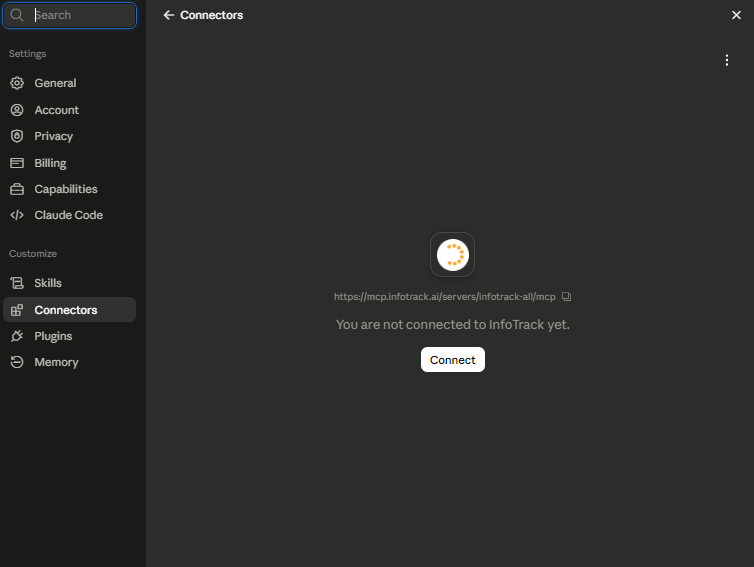
2 Press Connect and follow the prompts to sign in with your triSearch credentials.

3 Once authorised, your triSearch tools load automatically and are ready to use. Need help? Email support@trisearch.ai
NEW TO TRISEARCH
Create your account today
Not our client yet?

Set up a triSearch account and accept the terms. Your MCP access activates right away, and you can start placing demo orders once you’re ready.

Your first search in four steps

01.
Create your account
Sign up and accept the terms. Your MCP access is set up automatically.
02.
Get your MCP URL
Your endpoint is ready to use. If your agent has limited context, use the Search and Invoke endpoint instead.
03.
Connect to Claude
Click the Add to Claude link, press Connect, and sign in with your triSearch credentials. Your tools load automatically.
04.
Run a demo search
Use a demo client reference (DEMO-001, DEMO-002, or DEMO-003) to run test orders at no cost. Switch to your own client reference when you’re ready to go live.

Demo searches, free to run

Demo searches work exactly like live orders, just without the cost, so you can test your full workflow before you place a real one.
Use one of the demo client references below to run them.

Always use a demo client reference

Demo orders only work under one of these references. Use any other reference and the order runs live and you will be charged.​

Ask your agent one of:
  • Run a title search for title reference 1863/1000001
  • Get an on-file ASIC extract for Hancock Prospecting Pty Limited, ACN 008 676 417
  • Run a PPSR organisation search for Hancock Prospecting Pty Limited, ACN 008 676 417
Your agent discovers the available tools, selects the right one, and confirms any cost with you before placing an order. The full set of valid test inputs is below.

Full set of valid test inputs

Test inputReference
Demo title reference1863/1000001
The extract type is an argument that changes the result. Most test entities are available on-file; some also support current and historical.
Organisation ACN Extract type
A.C.M.E. Pty. Ltd 051 954 940 on-file
JB Hi-Fi Group Pty Ltd 093 114 286 on-file
Hancock Prospecting Pty Limited 008 676 417 on-file, current & historical
John Holland Pty. Limited 004 282 268 on-file
Bunnings Building Supplies Pty. Ltd. 008 672 179 current & historical
Organisation Identifier
Hancock Prospecting Pty Limited ABN 69 008 676 417
Bunnings Building Supplies Pty. Ltd. ACN 008 672 179

Ready to test?

Start with a cached demo search today

Frequently asked questions

No. Use your triSearch account to access the shared MCP endpoint and test with cached demo searches. No staging account or staging endpoint is required.

No. Cached demo searches return prepared sample results for onboarding and testing. Live searches use current data and are billed through your triSearch account.

After your triSearch account is active and your connector is set up, you can order live searches through your account when you need current results.

You need your triSearch MCP URL, your triSearch API key, and access to Claude custom connectors.

An Owner or Primary Owner may need to add the connector for the organisation first. Individual users can then connect and enable it in their own Claude workspace.

Your clients can create their own API keys and use the shared MCP endpoint. You can keep building and testing while any partner or revenue-share agreement is handled separately.

Most users can start with the shared MCP endpoint. A dedicated endpoint is created for partners who need customised tooling or revenue-share arrangements after the commercial agreement is complete.